How to Use the Customize Module – Adding the English Version
(Applicable users: admins)
Getting started with the Customize Module
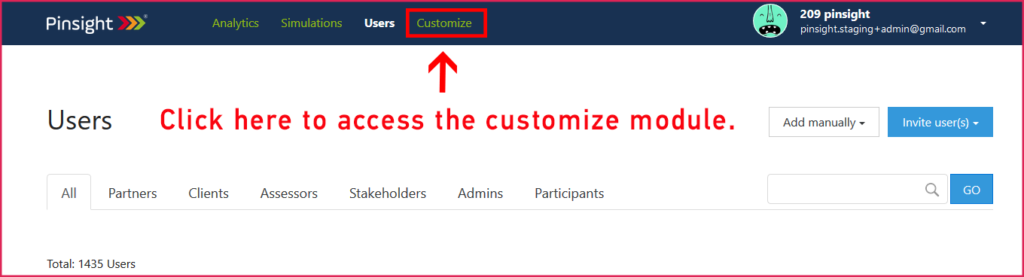
The customize module allows admins to create and publish custom assessments based on existing simulations (i.e, Manager Level – Ibisco, Senior Level – Marquis Resorts, etc.). If the customize module is included in your contract agreement, your admins will be able to access the customize module by clicking “Customize” in the top navigation bar while logged into the app.pinsight.com platform.
The base of a custom assessment is an already existing simulation. The customize module allows you to take an existing simulation and change some of the output that will appear in the final analytics report. Customized assessments can be created in English and in other languages and then published. Published customized assessments will then be available in the drop-down menus you use to invite participants to assessments.
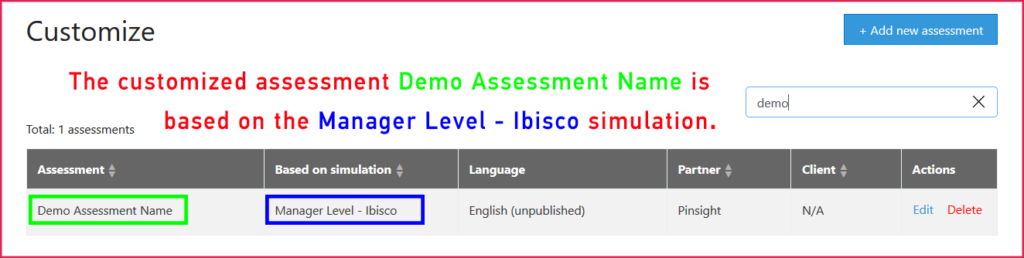
The following is a list of the report outputs you can alter in the customize module:
- The name of the customized assessment
- The simulation the customized assessment is based on
- The client who this customized assessment will belong under
- The default behaviors that show up in the analytics report
- The behavior names and their definitions
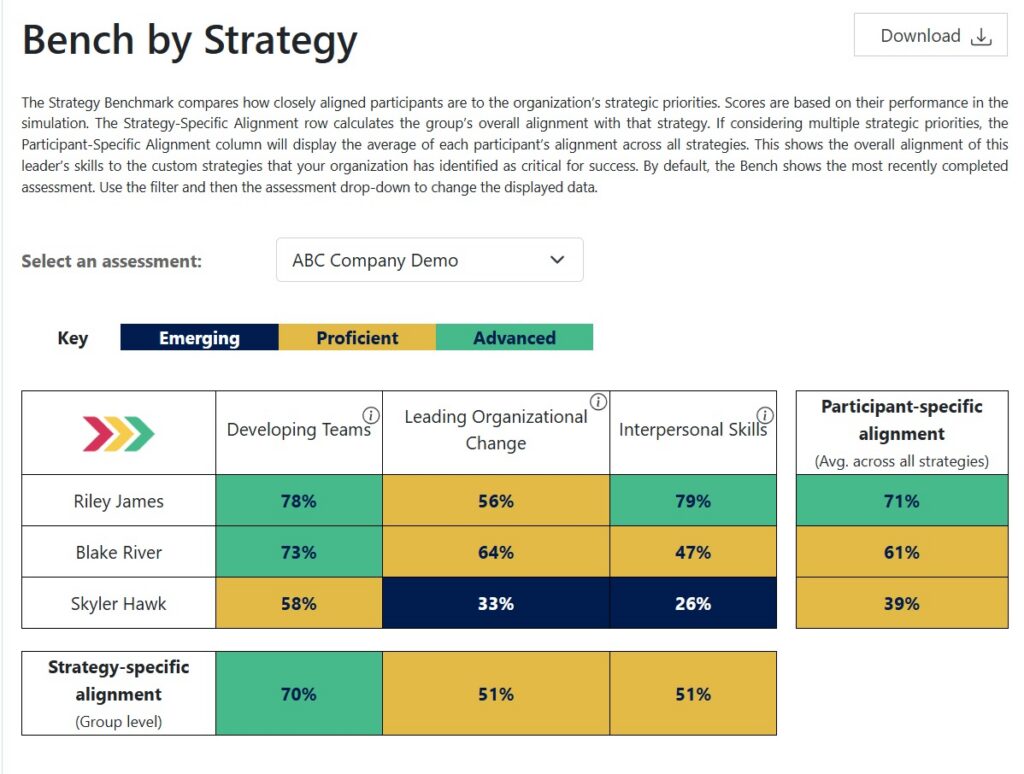
- You can add up to three strategies, which make up the Bench section of an analytics report
- It is important to remember that a published language version of a customized assessment cannot be unpublished or edited. There must also be a published English version of a customized assessment before you add a language version.
Creating a Customized Assessment in English
This section will walk you through creating a customized assessment in English. If you want to create a different language version, you’ll need to create an English version first. Note customizations can be unpublished and edits can be made to existing behavior labels and strategy names. However, you cannot add or delete previously published behaviors or strategies.
- Access the customize module by clicking Customize in your top navigation bar. You will have access to the customize module if it is included in your contract agreement.
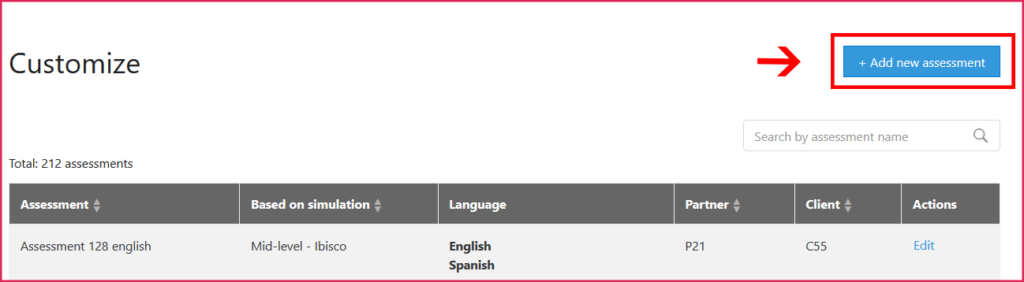
- Click the +Add new assessment button on the top-right of the screen below the navigation bar. You’ll be redirected to the New assessment screen.
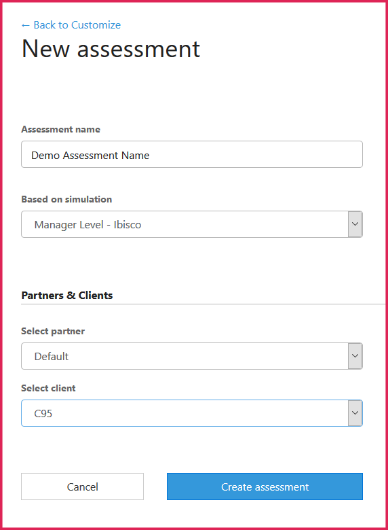
- On the New assessment screen fill out the provided fields:
- Assessment name: This is the name of the customized assessment.
- Based on simulation: Choose the simulation the customized assessment is based on from the drop-down menu. This cannot be changed after you click the Create Assessment button.
- Select partner and client: Choose the partner and/or client the customized assessment will be under. You may only have the client drop-down. This cannot be changed after you click the Create Assessment button. Only those participants under that partner and/or client may be invited to the customized assessment.
- Click the Create Assessment button. You will be redirected to the Edit assessment screen where you can complete the rest of your customizations by navigating between tabs.
- Note: If you exit the new assessment screen after clicking the Create Assessment button, you can return by going back to the Customize page and clicking Edit next to the customized assessment in the table.
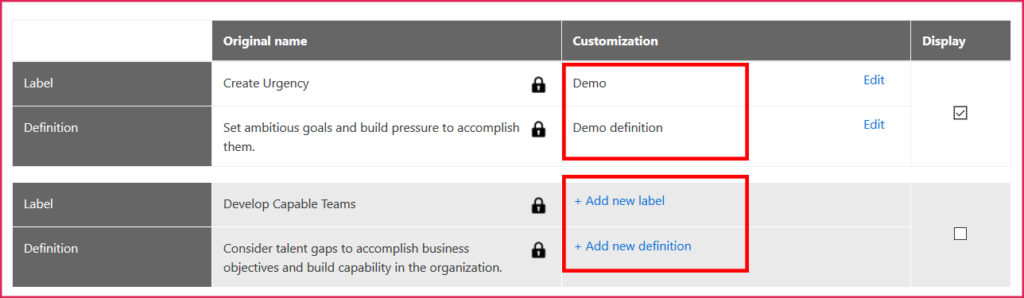
- Behaviors tab: In this tab can add new labels and definitions for any Pinsight behavior and definition. You can also select and deselect default behaviors. Customizing in this tab is optional. If you do not alter the fields in this tab, the customized assessment will display the default Pinsight behaviors/definitions in the analytics report.

- Customization column: In this column, there are two options for each behavior: +Add new label and +Add new definition. Click either option to open a text box to input the desired text. After entering the text, click Enter on your keyboard. It will save automatically. The text you enter will override the name and definitions shown in the Original name column in the analytics reports that generates after a participant completes the customized assessment.
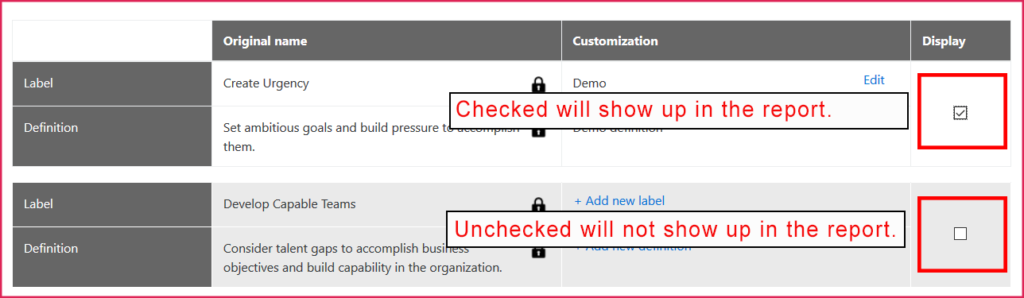
- Display column: The default behaviors for the simulation the customized assessment is based on are already checked in the display column. You can check and uncheck the boxes in the display column to change which behaviors appear in the analytics report. This saves automatically.
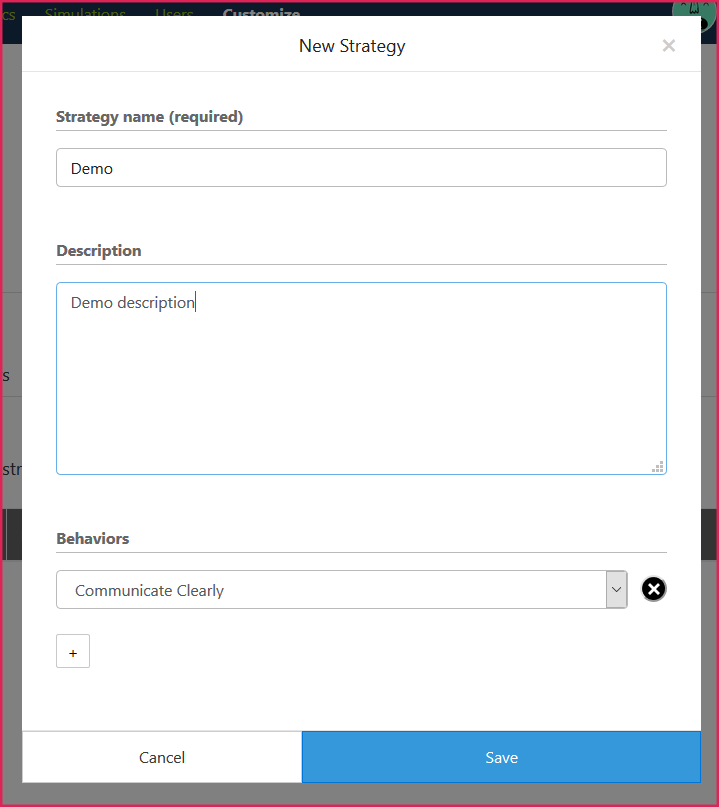
- Strategies tab: Customizing in this tab is optional. In this tab you can add up to three strategies that will display in the Bench section of the Analytics report. If you decide to add strategies here, remember to select the Bench checkbox in the Analytics tab for atleast one user type (preferably Admin) to assure the Bench appears in the final analytics reports.

Click the +Add new strategy button to get the New Strategy pop-up window. Enter the strategy name and description in the text boxes, then select the behaviors associated with the strategy. Click Save.
6. Click the Publish button when the customized assessment is 100% ready to go live because you will only be able to change certain aspects after publishing. After publishing the English version you’ll be able to add one or more languages.

Example Bench Graph
Adding strategies to a customized assessment results in a Bench graph, like the one shown below.